Most security checks are judgment calls — does this source look trustworthy, do these permissions make sense. A hash check is the exception: it’s arithmetic. If your downloaded APK’s SHA-256 matches the checksum the developer published, you hold the exact official file, bit for bit, with no room for argument. If it doesn’t match, the file was altered somewhere between the developer and you — also no argument. Ten seconds of comparison, mathematically conclusive either way. Here’s what’s actually being compared, where to find the official values, and how to run the check.
What a hash is, in plain English
A cryptographic hash function reads a file — all of it, every byte — and produces a short fixed-length fingerprint. SHA-256, today’s standard, produces 64 hexadecimal characters, something like:
3a7bd3e2360a3d29eea436fcfb7e44c735d117c42d1c1835420b6b9942dd4f1b
Three properties make this fingerprint useful:
- Deterministic: the same file always produces the same hash, on any computer, any day.
- Avalanche: change anything — one byte in a 100 MB file — and the hash changes completely, not slightly.
- One-way and collision-resistant: nobody can craft a different file that produces a given hash. Forging a match is not “hard” in the everyday sense; it is beyond the practical reach of anyone, which is why the entire software industry leans on it.
Put together: two files with the same SHA-256 are the same file. That’s the whole trick.
What a hash check catches — and what it doesn’t
The check defeats one specific, important attack: alteration in transit or at the mirror. The repackaging economy — taking a real APK, injecting spyware, redistributing it — produces files that look identical, install identically, and carry the original’s icon and interface. They cannot carry its hash. Mirror sites, “download accelerator” portals, forum re-uploads, chat-forwarded files: a hash comparison against the developer’s published value catches tampering at any of these points instantly.
Be equally clear about the limit: a hash verifies integrity, not virtue. Matching the developer’s checksum proves you have the developer’s file — it says nothing about whether the developer’s file is trustworthy. A perfectly verified copy of spyware is still spyware. That’s why hashing is one layer of the pre-install routine, alongside the scan and the permission review, not a substitute for them.
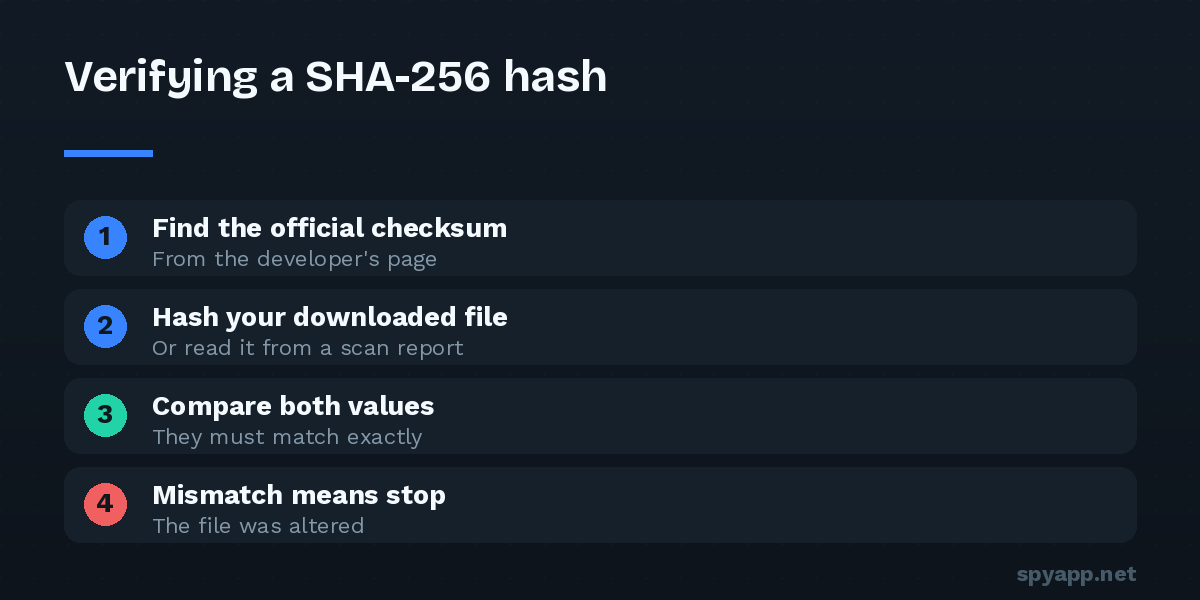
Step 1: Find the official checksum
The check requires a trusted reference value, published somewhere the attacker can’t edit:
- Developer websites — many open-source projects and security-conscious developers list SHA-256 values beside each download or in release notes.
- Code repositories — releases on the project’s official repository page commonly include checksums.
- Reputable APK repositories — the better ones display the hash on each file’s page.
One rule keeps the logic sound: the checksum must come from a different, more trusted place than the file. A hash printed on the same shady download page as the APK verifies nothing — whoever tampered with the file edited the page too. Developer’s site for the value, any mirror for the bytes: that division of trust is the whole design.
Step 2: Get your file’s hash
Three easy routes, no command line required:
The scan report (easiest). Upload the APK to our free scanner — the SHA-256 appears at the top of every report. You get the malware verdict and the permission analysis in the same pass, which is the efficient order anyway: one upload, three checks.
On the phone. Several reputable file managers and hash-checker utilities compute SHA-256 for any file: open the APK, choose checksum/properties, read the value.
On a computer. Every OS ships a hasher — certutil -hashfile app.apk SHA256 on Windows, shasum -a 256 app.apk on macOS, sha256sum app.apk on Linux.
All three produce the identical 64 characters, because that’s the point of the math.
Step 3: Compare properly
Don’t eyeball two long strings — humans verify the first few characters and quit. Copy both values into the same note or use your browser’s find function (paste one, search for the other): a full match lights up; any difference doesn’t. Case doesn’t matter (3A7B… equals 3a7b…); every character does.
Match: you hold the exact file the developer published. Proceed to the scan and permission review with the integrity question settled.
Mismatch: stop. First rule out innocent explanations — you may be comparing against a different version number, a different variant (per-architecture builds have different hashes), or a checksum of a wrapper file (a .zip containing the APK hashes differently than the APK). If version and variant line up and the values still differ, the file is not what the developer shipped: delete it, re-download from the official source, and if the mismatch persists from a particular mirror, you’ve identified a distribution point serving altered files — stay away and warn others (the comment section on the file’s scan report is a good place).
Where this fits among the other identity checks
Android has a second, automatic identity mechanism: the signing certificate, which our scanner also reports and which catches repackaging even when no checksum was published — a modified app must be re-signed by its modifier. The two checks answer slightly different questions: the certificate says who signed this file; the hash says is this exactly that file. Certificate verification works on any APK; hash verification needs a published reference but is absolute when you have one. Use the hash when the developer offers it, the certificate always, and the certificate explainer covers the other half of the story.
Make it a reflex for the files that matter
Realistically, you won’t hash every wallpaper app, and you don’t need to. The reflex worth building is conditional: any APK you sideload that will touch money, messages, or credentials — and any file whose journey to you involved mirrors, forums, or chat forwards — gets the ten-second check. Find the official value, read yours off the scan report, compare in full. It’s the rare security measure with no judgment in it at all: the numbers either agree or they don’t, and either answer tells you exactly what to do next.