Open your app drawer and count the apps. Now open Settings → Apps → See all apps and count again. The second number is bigger — and the gap is where stalkerware lives. Hiding the launcher icon is the defining trick of covert monitoring apps: present and powerful, but absent from the one place people actually look. The trick is effective against casual glances and nearly useless against anyone who knows Android’s bookkeeping — because an app can remove its icon, but it cannot remove itself from the system’s own lists. This article explains how the vanishing works, the disguises that accompany it, and the four lists where hidden apps are always visible.
How an app vanishes from the drawer
The app drawer isn’t a list of installed apps — it’s a list of launcher icons, and an icon is something an app declares, not something it must have. Spyware exploits this in standard ways: declaring no launcher entry at all; disabling its icon component right after setup (often when the installer taps “hide” in the spy app’s settings); or showing a decoy first run — a fake “error: not compatible” message — before removing itself from view. Some products stay invisible until the installer dials a secret code to summon the interface.
None of this is sophisticated, and that’s the point worth absorbing: icon hiding is presentation, not concealment. The app still occupies storage, still holds its permissions, still runs its services, still appears in every system accounting. It has hidden from your habit — checking the drawer — not from the phone.
The second layer: the disguise
Because hidden apps still appear in settings, stalkerware pairs invisibility with camouflage for the lists it can’t leave:
- Generic system-style names: “Sync Service”, “Device Health”, “System Update”, “WiFi Helper” — boring on purpose, designed to be scrolled past.
- Borrowed iconography: gear icons, Android-green silhouettes, shield logos implying officialdom.
- Real system components’ names, slightly off — close enough that a worried owner who searches the name finds reassuring results about the legitimate component.
The counter-skill is calibration: on most phones, true system processes are filtered out of the main apps view or grouped separately. A “system service” sitting in your downloaded apps between Spotify and Twitter chose that costume. When unsure, tap it: a genuine system component shows no Uninstall button and minimal permissions; a costume shows Uninstall and a surveillance-grade permission list.
The four lists where hiding is impossible
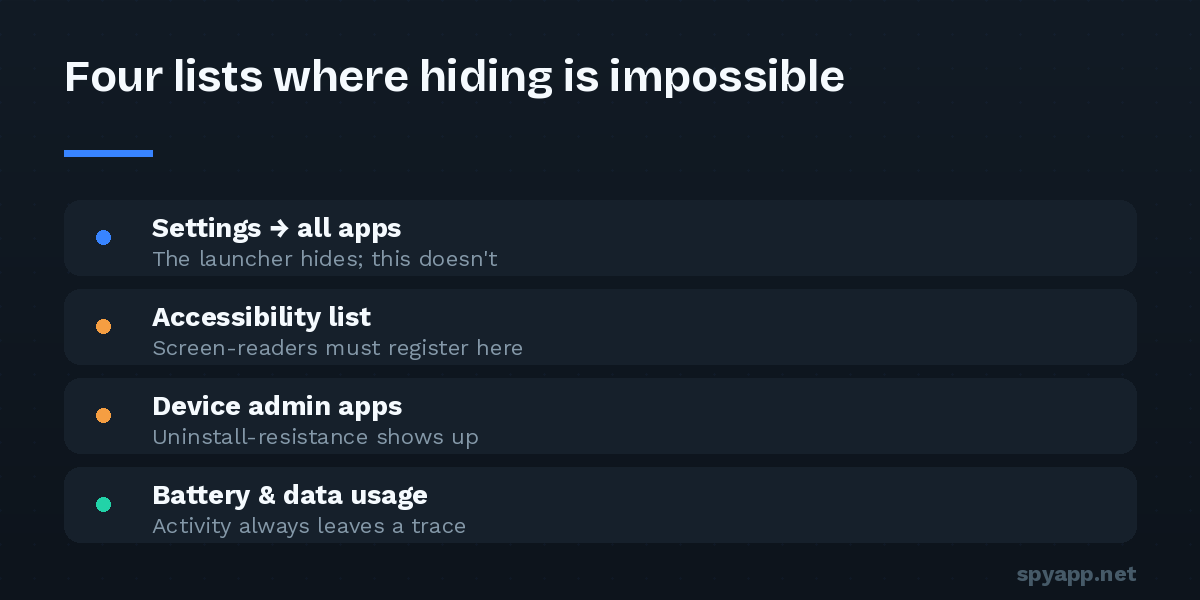
Here is the bookkeeping an app cannot opt out of. Ten minutes, four screens:
1. The full app list. Settings → Apps → See all apps. Every installed package appears here, icon or no icon. Scroll slowly — twice; disguised names are built to survive one fast pass. Anything you don’t remember installing, and any system-costume among the downloaded apps, gets a tap and a permission review.
2. The Accessibility list. Settings → Accessibility → Downloaded apps. Stalkerware that reads messages and screens needs an accessibility service, and enabling one puts the app on this list by name, unhideably. The list should be short and entirely recognizable — this single screen catches the large majority of covert monitoring apps, which is why it leads our full hidden-app audit.
3. Device admin apps. Settings → Security → Device admin apps. Stalkerware takes admin rights to block its own uninstallation, and taking them means appearing here. Beyond Find My Device and known workplace tools, the list should be empty.
4. The consumption ledgers. Settings → Battery → Battery usage, and Network & internet → Data usage. Surveillance costs power and bandwidth, billed by app name — including hidden ones. An app you’ve “never seen” consuming background data has announced itself in numbers (our battery guide shows how to read the pattern). Two bonus ledgers on recent Android: the Privacy dashboard, which timelines which apps used camera, microphone and location; and the green status-bar dot, which names the app using the camera or mic right now — hidden icon or not.
From found to confirmed
A suspicious name from those lists isn’t yet a verdict — and you shouldn’t have to choose between “probably fine” and “probably spyware.” Export the app’s APK with a backup tool and upload it to our free scanner. Hidden-icon behavior is one of the specific things the analysis flags — along with stalkerware signature matches, the Accessibility and device-admin requests, and every permission in plain English. An app with no launcher icon plus screen-reading access plus location and SMS permissions isn’t ambiguous; the report will say so plainly.
Before you remove it — one pause
If what you’ve found is likely stalkerware installed by a partner, ex, or family member, removal will be visible to them: their dashboard goes quiet, and many products send tamper alerts. Where that person’s reaction is any cause for concern, the safe order is support and evidence first, removal second — laid out in our safety-first removal guide. In situations without that risk, the standard sequence applies: revoke device admin, revoke Accessibility, uninstall, then change passwords from a clean device.
The takeaway
“Hidden” is the most overstated word in stalkerware marketing. These apps hide from one screen — the drawer — by exploiting one technicality, and pay for it by being permanently visible in four others, plus the meters that bill their appetite. The drawer shows you what apps want you to see. Settings shows you what’s actually there. Once a month, look where the bookkeeping lives — and the phone’s most famous hiding trick becomes a ten-minute checklist with no hiding places in it.