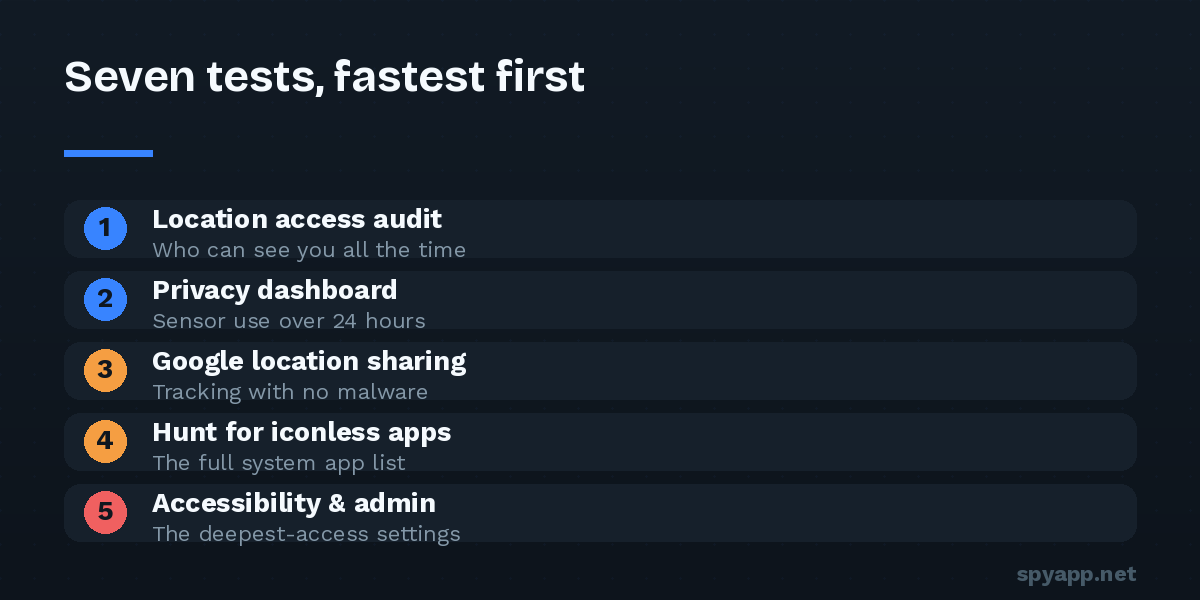
“Is my phone being tracked?” is one of the most searched security questions on the internet, and most answers are either vague (“look for strange behavior!”) or terrifying (“assume yes, buy a new phone”). Neither helps. Tracking leaves evidence, and Android gives you the tools to find it. Here are seven concrete tests, ordered from fastest to most thorough. You can run all of them in under an hour with nothing but the phone itself.
Test 1: Check who has location access right now (2 minutes)
Open Settings → Location → App location permissions. Android sorts apps into “Allowed all the time”, “Allowed only while in use” and “Not allowed”.
The “Allowed all the time” list is the one that matters. Very few apps have a legitimate reason to know your location while you’re not using them — Find My Device, maybe a weather widget, maybe Google Maps if you opted into timeline features. A game, a “cleaner”, a PDF reader or anything you don’t recognize in that list is your first solid lead.
Test 2: Review the privacy dashboard (5 minutes)
On Android 12 and newer, Settings → Security & privacy → Privacy → Privacy dashboard shows a timeline of every app that used location, camera or microphone in the last 24 hours.
Look for two patterns. First, apps accessing location at odd hours — 3 a.m. location pings are not normal app behavior. Second, repeated short accesses spaced evenly apart (every 15 or 30 minutes), which is the signature of an app polling your position on a schedule.
Test 3: Audit Google’s own location sharing (3 minutes)
Not all tracking is malware. The most common way partners and family members track each other is through features that were turned on once and forgotten:
- Google Maps location sharing: open Maps, tap your profile photo → Location sharing. Anyone listed there can see you in real time.
- Find My Device / Family Link: check whether your account is part of a family group with supervision enabled (Settings → Google → Parental controls).
- Find Hub / Find My network: make sure no unknown tracker tags (AirTag, SmartTag, Tile) are paired or following you. Android shows “tracker traveling with you” alerts — never dismiss one without reading it.
If you find sharing you didn’t set up, that answers your question without any malware involved.
Test 4: Hunt for apps with no icon (10 minutes)
Tracking apps usually hide their launcher icon. The app drawer won’t show them — the full system list will. Open Settings → Apps → See all apps and scroll the entire list slowly. You’re looking for:
- Names that imitate system components: “Sync Services”, “Device Health”, “System Update”, “WiFi Service”.
- Apps with the default green Android icon and a generic name.
- Anything installed on a date you can connect to someone having physical access to your phone (check App info → Store → App details, or the install date shown for sideloaded apps).
Tap anything suspicious and look at its permissions. A “system update” app requesting Location, SMS, and Accessibility is not a system update.
Test 5: Check Accessibility and Device Admin (5 minutes)
These two settings pages are where serious tracking apps live, because they grant the deepest access:
- Settings → Accessibility → Downloaded apps — apps here can read your screen, including messages and 2FA codes.
- Settings → Security → Device admin apps — apps here can resist uninstallation and lock or wipe the phone.
You should personally recognize and trust every single entry on both lists. An unknown app in either place is the strongest evidence this test series can produce.
Test 6: Watch the battery and data ledgers (10 minutes)
Tracking costs power and bandwidth. Open Settings → Battery → Battery usage and Settings → Network & internet → Data usage, then sort by consumption.
A tracking app betrays itself in two ways: battery use far out of proportion to an app you never open, and background data transfer from an app that has no business talking to the internet. Pay particular attention to upload-heavy apps — collected location logs, messages, and recordings all have to leave the phone somehow.
Test 7: Run a scan and verify what’s installed (15 minutes)
Finally, get a second opinion from software:
- Make sure Google Play Protect is on (Play Store → profile icon → Play Protect) and run a manual scan. Spyware installers frequently disable it, so finding it off is itself a red flag.
- Run a reputable mobile anti-malware scan for a second engine’s verdict.
- For any sideloaded APK you’re unsure about, extract or re-download it and check it with an online APK scanner before trusting it — our guide to checking an APK before installing walks through this step by step.
How to read your results
- All seven tests clean: your phone is very unlikely to be tracked by an app. If someone still knows things they shouldn’t, look at shared accounts (Google, iCloud-synced services, carrier family plans) rather than the device.
- One soft signal (battery, warmth, data): re-test in a week before worrying. Phones have noisy baselines.
- A hard signal (unknown app with Accessibility, location access you didn’t grant, sharing you didn’t enable): treat it as confirmed and move to removal.
One important caution before you delete anything: if the person who might be tracking you is a partner or someone you live with, removing the app can alert them instantly. Read our safety-first guide to removing stalkerware before taking action — in those situations the order of steps matters more than the steps themselves.