Generic spyware guides list battery drain and data spikes, and those signs matter here too. But when the question is specifically “did someone — a partner, an ex, a family member — put a tracking app on my phone?”, the most reliable indicators change. Stalkerware is installed by a person with access to your life as well as your device, and that person leaves two kinds of evidence: the technical traces every spy app leaves, and the behavioral traces of someone who knows too much. This list weights both, starting where stalkerware cases actually start.
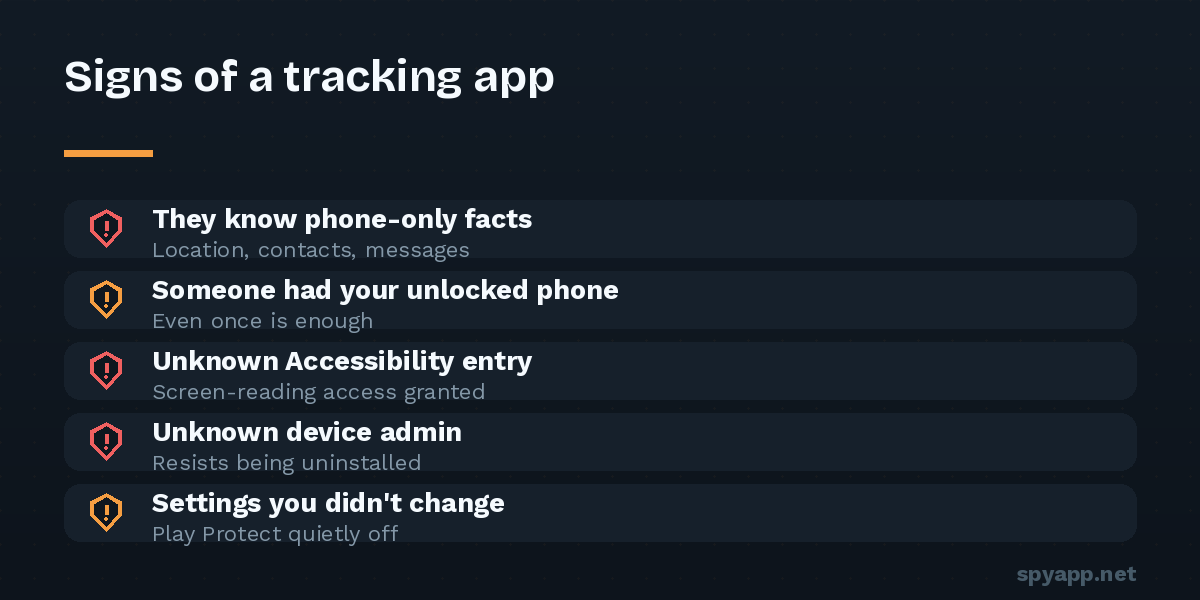
1. They know things your phone knows
The sign that outranks every technical check: a specific person repeatedly has information that lives on your phone. Where you were this afternoon. What you said in a private chat. Who called you. Plans you made and changed. Each instance alone has an innocent explanation — a mutual friend, a coincidence, a good guess — which is exactly why victims dismiss the pattern for months. Stop evaluating instances and look at the pattern: if one person consistently knows phone-resident information, the simplest explanation is access to the phone’s contents. In real stalkerware cases, this sign appears first and is doubted longest. Trust it enough to check the rest of the list.
2. They had your unlocked phone — even once
Stalkerware needs minutes with an unlocked device: long enough to sideload an APK, grant permissions, hide the icon. Think back honestly. Have they held your phone “to put music on”? Insisted on “fixing” something? Do they know your PIN — or could they have watched you enter it? Did they give you the phone, set up and ready? (“Gift” phones from controlling people deserve their own suspicion — they can arrive pre-configured.) Opportunity plus the knowledge pattern from sign 1 is when this list moves from interesting to urgent.
3. An unfamiliar entry in the Accessibility list
The strongest technical sign, because tracking apps that read messages and screens almost universally need it: Settings → Accessibility → Downloaded apps. Every app there can see everything you see. You should recognize each entry and remember enabling it. A generic name you can’t place — “Sync Service”, “Device Care”, “System Helper” — sitting in this list is, in practice, close to a confirmation. Note its exact name; don’t remove anything yet (sign 8 explains why).
4. An unknown device admin
Settings → Security → Device admin apps. Admin rights exist so corporate tools and Find My Device can enforce policies — and stalkerware takes them to block its own uninstallation. Beyond Find My Device and known workplace software, this list should be empty. An unexplained entry here pairs almost exclusively with the entry you found (or will find) in sign 3.
5. Resource symptoms with no new habits
The classic trio — battery draining during idle hours, background mobile data in apps that shouldn’t need any, a phone warm on the nightstand — covered in detail in our battery diagnosis guide. On its own this trio has boring explanations more often than not. Following signs 1–4, it stops being ambiguous: it’s the cost of your data being uploaded to someone’s dashboard.
6. Protective settings you didn’t change
Tracking-app installation requires switching things off, and installers rarely switch them back: Play Protect disabled (Play Store → profile → Play Protect — it should be on, and you didn’t turn it off), “Install unknown apps” allowed for a browser or file manager (Settings → Apps → Special app access), notification previews newly hidden, or security notifications silenced. Settings drift toward less visibility that you don’t remember choosing is someone else’s housekeeping.
7. Your accounts show another set of eyes
Some “tracking app” cases turn out to involve no app at all — just your accounts. And app-based stalkers often take both. Check: Google account → Security → Your devices (anything you don’t own?), recent security activity, Google Maps → Location sharing (shares you forgot or never made), and linked devices in WhatsApp/Telegram (a web session on a computer you’ve never used reads everything). Our guide to tracking without touching the phone covers this route fully — close these doors regardless of what else you find.
8. The app fights observation
The final sign appears when you start looking: a settings page that closes itself as you open the suspect app’s info, an uninstall button greyed out, a “system” app that can’t be found in the Play Store, or — most telling — the person suddenly probing (“anything wrong with your phone?”) right after you’ve been checking. Software and installers that react to scrutiny have told you everything.
What to do with your count
Signs 3, 4, or 8 present: treat it as confirmed tracking. But before removing anything, read this carefully — removal is visible to the person watching. Their dashboard goes quiet; many products alert them outright. If that person is someone whose reaction worries you, the safe sequence is assessment → support organizations → evidence preservation → then removal, exactly as laid out in our safe stalkerware removal guide. If the situation carries no such risk, the standard removal order applies: revoke admin, revoke Accessibility, uninstall, change passwords from a clean device.
Only behavioral signs (1, 2) so far: run the full hidden-app audit slowly — disguised names are designed to be skimmed past — and audit the accounts in sign 7. If you locate a suspicious APK, our free scanner turns it into a verdict: known stalkerware families are flagged by name, with every surveillance permission explained.
Nothing found anywhere: the accounts route (sign 7) explains more cases than people expect — and information also leaks through mutual friends and social media. Close those doors, set a new PIN nobody has seen, and let the evidence you gathered — including the absence of it — count for something.
One last time, because it’s the heart of this article: the pattern of someone knowing too much is evidence. You noticed it for a reason. Check the lists, scan the files, and act in the order that keeps you safe.