“Is my phone hacked?” is usually asked in a moment of anxiety — a strange pop-up, a battery that died at lunch, a person who knew something they shouldn’t. Anxiety wants an answer, and the internet mostly offers either dismissal (“you’re paranoid”) or dread (“anyone can be hacked!”). This checklist offers neither. It’s a diagnostic: a fixed sequence of yes/no checks, each pointing to a specific next step, that takes you from a feeling to a finding in about twenty minutes.
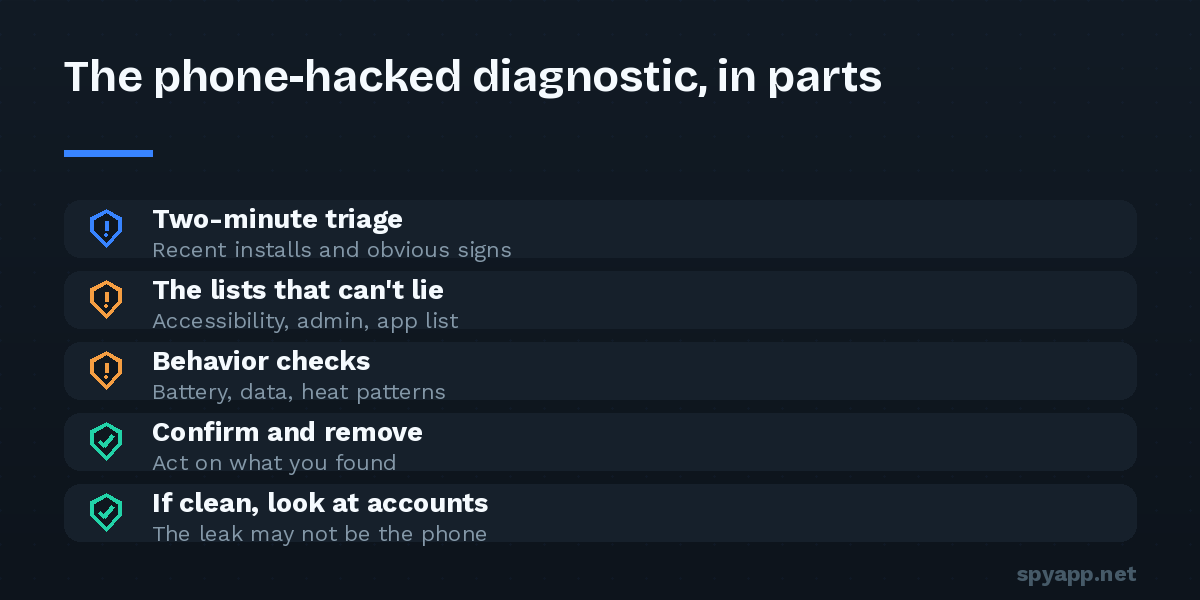
Work top to bottom. Stop and follow the branch whenever you hit a YES.
Part 1: The two-minute triage
Check 1 — Is there an immediate, concrete problem? Money missing from accounts, texts you didn’t send appearing in your sent folder, password-reset emails you didn’t request, your contacts receiving strange messages from you?
→ YES: skip the diagnostics and act now: from a different device, change the password of the affected account first, then your Google account, enable two-factor authentication, and contact your bank if money is involved. Then return here to find how it happened. → NO: continue — what follows is detection, not emergency response.
Check 2 — Did anything specific just happen? A link you clicked, an APK you installed, someone who had your unlocked phone?
→ YES, an APK: that file is your prime suspect — scan it now if you still have it, and continue below. → YES, physical access by someone you distrust: read the stalkerware guide alongside this checklist; the safety notes matter. → NO: continue anyway — the checks below catch problems regardless of origin.
Part 2: The lists that can’t lie (five minutes)
These three screens are where malicious apps must appear no matter how well they hide elsewhere.
Check 3 — Settings → Accessibility → Downloaded apps. Is anything listed that you don’t recognize and didn’t deliberately enable? → YES: this is the strongest single finding. Note the exact name; don’t remove yet — go to Part 4. → NO: continue.
Check 4 — Settings → Security → Device admin apps. Anything beyond Find My Device and known workplace tools? → YES: same as above — note it, Part 4. → NO: continue.
Check 5 — Settings → Apps → See all apps. Scroll the full list slowly. Any app you didn’t install, or generic system-sounding names (“Sync Service”, “Device Health”) sitting among your normal apps? → YES: open its App info; if it has surveillance permissions (SMS, microphone, location) or appeared in Checks 3–4, it’s a suspect — Part 4. → NO: continue.
Part 3: The behavior checks (ten minutes)
Check 6 — Battery and data, at rest. In battery usage and data usage screens: significant background consumption by unfamiliar apps, drain during hours the phone sat idle, a phone warm on the nightstand? → YES: the drain-diagnosis guide tells spyware patterns from aging batteries; an app implicated there plus anything from Part 2 means Part 4. → NO: continue.
Check 7 — Your accounts, from the other side. Google account → Security: unfamiliar devices signed in, security events you don’t recognize? Messaging apps → linked devices: web sessions you didn’t create? → YES: sign out everything unknown, change the Google password, enable 2FA — many “hacked phone” cases are actually this, a hacked account, and you’ve just fixed it. Watch for a week. → NO: continue.
Check 8 — The line itself. Dial #21# and #62#: any calls or texts forwarding to a number you don’t recognize? → YES: call your carrier from another phone, remove the forwarding, set a carrier PIN. → NO: continue to the verdict.
Part 4: When you found something — confirm and remove
You have a named suspect from Checks 3–6. In order:
- Verify before deleting. Export the app’s APK with a backup tool and upload it to our free APK scanner. A SPYWARE verdict ends the doubt; the report also shows exactly what it could access — which tells you which passwords matter most in step 4.
- Safety pause. If the likely installer is a partner, ex, or anyone whose reaction you fear: removal is visible to them. Talk to a support organization about timing first — the stalkerware guide explains why this ordering can matter more than the removal itself.
- Remove in the right order: revoke device admin → revoke Accessibility → uninstall (safe mode if it resists). Full walkthrough in the removal guide.
- Assume collected data is gone: from a clean device, change Google first, then banking and email; enable 2FA; audit sessions.
- Re-run Parts 2–3 to confirm the phone is clean, and close the door that was used — new PIN, unknown sources off, Play Protect on.
Part 5: When everything came back clean
All eight checks negative is a meaningful result — you’ve just looked everywhere consumer-grade attacks actually live. Three honest possibilities remain:
- The feeling came from elsewhere. Information leaks through mutual friends, social media, shared calendars and oversharing far more often than through malware. Worth a thought before more scanning.
- A symptom has a boring cause. Old battery, misbehaving app, hot weather. The diagnosis guides above usually find it.
- You want certainty anyway. That’s legitimate — a factory reset done the right way (set up as new, passwords changed, doors closed) delivers it, at the cost of an afternoon.
Either way, finish with the basics that make the next scare shorter: strong PIN nobody has seen, two-factor authentication, location permissions trimmed, and a scan for anything that ever arrives from outside the Play Store. The question “is my phone hacked?” gets easier every time you already know where to look.