Installing apps from outside the Play Store — sideloading — is sometimes the only way to get what you need: an app not available in your country, an older version that still works on your phone, software the store doesn’t carry. Sideloading itself isn’t reckless. Installing an APK you haven’t checked is.
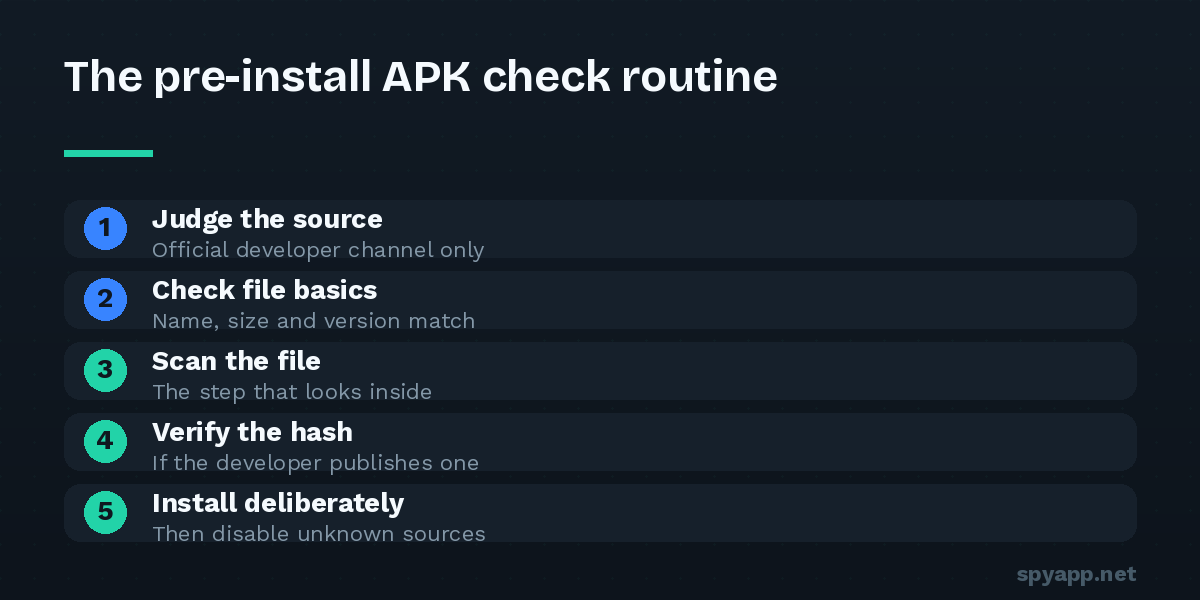
The difference between the two is about three minutes of work. Here’s the routine, in the order that catches problems earliest.
Step 1: Judge the source before the file
Most malicious APKs announce themselves by where they live. Before downloading, ask:
- Is this the developer’s own site or a known repository? An APK from the developer’s official website, or from a long-established repository with a reputation to protect, starts with credibility. An APK from a forum post, a Telegram channel, or a site whose name is a misspelling of a famous brand starts with none.
- Is it promising something impossible? “Premium unlocked”, “ad-free mod”, “free coins” — modified APKs are the single most common malware delivery vehicle on Android. Someone spent time modifying that app, and “as a gift to strangers” is rarely the reason.
- Does the download chain feel evasive? Multiple redirects, countdown timers, “download accelerator” apps, an APK that arrives inside a password-protected ZIP — friction designed to defeat scanning is itself a warning sign.
If the source fails these questions, stop here. No scan result should talk you into trusting a file from a source you already distrust.
Step 2: Check the file basics
Once downloaded — but before tapping it — look at the file itself:
- Extension: it should be exactly
.apk(or a bundle format like.xapkfrom known repositories). A file namedapp.apk.exe, or a ZIP with strange contents, is wrong. - Size sanity: a full messaging app in 2 MB, or a simple flashlight at 300 MB, doesn’t add up. Compare against the size on the app’s official store page.
- Name games: attackers love near-miss names — an extra letter, swapped word order, “Pro” appended. Check carefully if the app is one attackers like to impersonate: messengers, banking apps, VPNs.
Step 3: Scan it — the step that actually looks inside
Everything above is judgment; this step is evidence. Upload the file to our free APK scanner and read the report:
The verdict. SAFE means no spyware signatures matched and no high-risk behavior was found. WARNING means the file isn’t confirmed malware but shows risky traits — read on before installing. SPYWARE means it matched known malicious signatures: delete it, full stop.
The permission list. This is where you learn what the app can do, regardless of what it claims to be. The report translates each sensitive permission into plain English and flags mismatches. The question to ask is always the same: does this permission serve the app’s purpose? A keyboard needs no GPS. A wallpaper app needs no microphone. A game needs no access to your SMS. One absurd permission is worth more than any number of positive reviews.
The certificate. Every APK is signed by its developer, and the signature can’t be forged without changing the certificate. If a well-known app arrives signed by an unknown certificate — or a debug certificate — you are holding a repackaged copy, whatever the icon says. This single check defeats the most dangerous category of fake apps.
The hidden-icon flag. Legitimate apps want to be opened. An APK with no launcher icon is built to be forgotten after installation — a hallmark of stalkerware and spyware.
Community votes and comments. Engines catch signatures; people catch behavior. If other users scanned the same file and report battery drain or pop-ups, you’ve been warned by experience.
Step 4: Verify the hash if the developer publishes one
Some developers publish the SHA-256 checksum of their official releases. The scan report shows your file’s SHA-256 at the top — if it matches the developer’s published value character for character, you have the exact official file, bit for bit. If it doesn’t match, the file was altered somewhere between the developer and you. This check takes ten seconds and is mathematically conclusive.
Step 5: Install deliberately, then close the door
If the file passed everything:
- Android will ask you to allow installs from the app you’re using (browser or file manager). Allow it for this one install.
- After installing, go back and turn that permission off: Settings → Apps → Special app access → Install unknown apps → set back to “Not allowed”. Leaving it open is how one sideload becomes a habit of drive-by installs.
- On first launch, grant runtime permissions one by one, and deny anything that doesn’t match the app’s purpose — modern Android lets most apps run fine with permissions denied.
- Watch the app’s battery and data behavior for a few days. The Step 3 report told you what to expect; deviation from it is information.
The routine, condensed
Once you’ve done this twice it takes under three minutes: trustworthy source → sane file → clean scan with sensible permissions and a matching certificate → install → revoke install rights. Print it, or just remember the principle behind it: an APK is a stranger asking to live in your home. You wouldn’t skip the look through the peephole.
For the deeper background — what an APK actually contains and why permissions and certificates work the way they do — see our beginner’s guide to APK files and the permission deep-dive.