A factory reset is the standard advice for spyware, and it works — but it’s also disruptive. You lose app data, local files, configurations, and an afternoon. The good news: the overwhelming majority of consumer spyware is an ordinary app wearing a disguise. It has no special powers a reset is needed to break. If you remove its defenses in the right order, it uninstalls like anything else.
This guide assumes you’ve already identified a suspicious app — if you haven’t, start with our guide to finding hidden spy apps, then come back.
A safety note before anything else. If the spyware was likely installed by a partner, ex, or family member, removal will be visible to them — monitoring stops, and many spy apps notify the installer. If there is any chance that could put you at risk, pause and contact a domestic-violence support organization before proceeding. Evidence matters too: photograph the app’s name, its permission screens, and its entry in the Accessibility and device-admin lists before deleting anything.
Why spyware survives normal uninstall attempts
Spy apps defend themselves with three standard tricks, and each has a standard counter:
| Defense | What it does | Counter |
|---|---|---|
| Device admin rights | Greys out the Uninstall button | Revoke admin first |
| Accessibility access | Detects you opening its settings page and closes it | Use safe mode |
| Generic disguise name | Makes you doubt removing it | Verify by scanning the APK |
That’s the whole playbook. Work through it top to bottom.
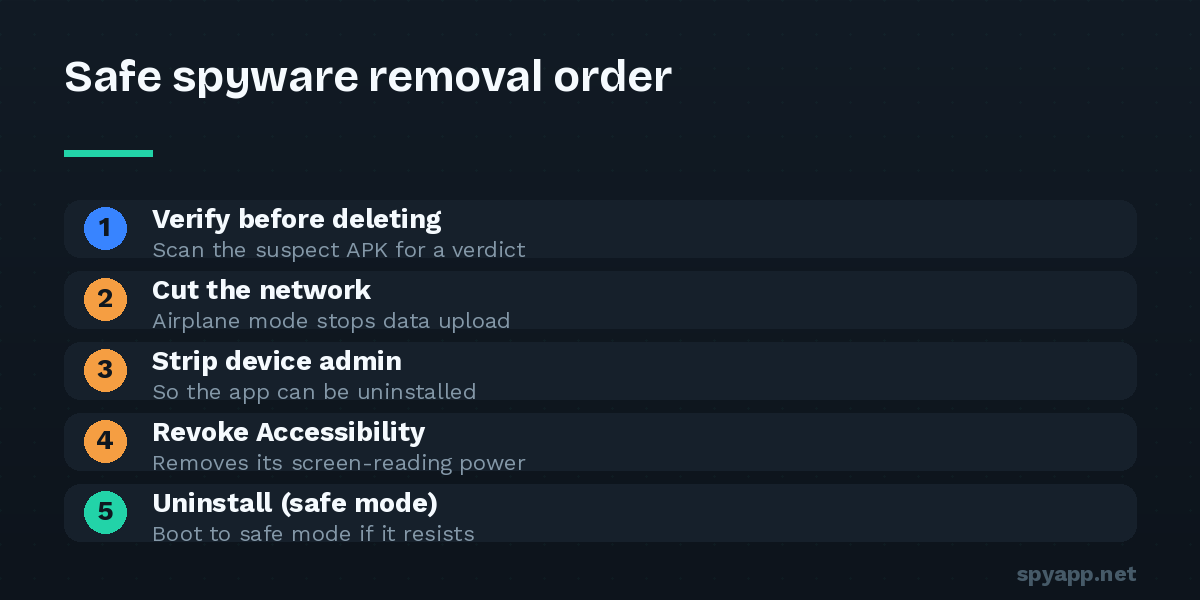
Step 1: Verify before you delete
Removing the wrong “System Service” is harmless on most phones, but verifying takes two minutes and tells you what you’re dealing with. Export the suspicious app’s APK with a backup tool and upload it to our free APK scanner. A SPYWARE verdict ends the doubt; the report also tells you what the app could access — which determines which passwords you change in Step 6.
Step 2: Cut its network connection
Put the phone in airplane mode. This stops live uploads of your data while you work, and prevents the app from receiving remote commands (some commercial spyware can be hidden or even uninstalled remotely by the person controlling it — you want it frozen in place while you document and remove it).
Step 3: Strip device admin rights
Settings → Security → Device admin apps (path varies slightly: sometimes under “More security settings”). Find the suspicious app and toggle its admin rights off. The phone may warn you dramatically; proceed. Until this is done, the Uninstall button stays grey.
Step 4: Revoke Accessibility access
Settings → Accessibility → Downloaded apps → the suspicious app → turn it off. This blinds the app — it can no longer read your screen or detect what you do next. If the settings page closes by itself when you try (yes, some spyware does this — it’s watching the screen and fighting back), skip straight to safe mode in Step 5.
Step 5: Uninstall — in safe mode if necessary
Try the normal route first: Settings → Apps → [the app] → Uninstall.
If the button is greyed out, the app reopens settings, or it reappears after removal, use safe mode:
- Hold the power button, then long-press “Power off” on screen until “Reboot to safe mode” appears (on most devices).
- In safe mode, third-party apps cannot run — the spyware is inert and cannot resist.
- Repeat Steps 3 and 4 if needed, then uninstall.
- Reboot normally.
A “work profile” complication: some stalkerware installs itself as a managed work profile, which can’t be removed app-by-app. If you find a work profile you never set up (Settings → Accounts, or a briefcase badge on apps), delete the entire profile from that screen.
Step 6: Assume your data was taken — and act on it
Removal stops future spying; it does nothing about what was already collected. From a different, clean device:
- Change your Google account password first — it’s the master key.
- Then banking, email, and any app where money or sensitive conversations live.
- Enable two-factor authentication everywhere it’s offered.
- In each major account, review active sessions and signed-in devices, and sign out anything you don’t recognize.
- If the spyware could read SMS (the scan report from Step 1 tells you), be aware that SMS-based 2FA codes may have been visible too — prefer an authenticator app going forward.
Step 7: Verify the phone is actually clean
Spyware sometimes travels in pairs — a visible component and a quieter one. After removal:
- Re-run the full audit from our hidden-apps guide: Accessibility list, device admin list, notification access, full app list.
- Run Play Protect (Play Store → profile → Play Protect → Scan) and make sure it’s switched on permanently.
- Check Install unknown apps permissions are all set to “Not allowed”.
- Watch battery and background data for a few days — the symptoms that tipped you off should disappear.
When a factory reset is the right call
Be honest with yourself about three situations:
- You can’t find it, but the symptoms persist. You can’t remove what you can’t locate.
- It keeps coming back. Something is reinstalling it — either a second hidden component or someone with continued access to the phone.
- The phone was rooted by whoever installed the spyware. Root-level spyware can survive normal uninstallation. If you didn’t root your phone but a root checker app says it is rooted, reset — and consider whether the person had enough access to do that.
A reset removes virtually all consumer spyware. Back up photos, contacts and documents (not full app backups — you’d risk restoring the problem), reset, set up as new, and change passwords afterward anyway.
Keep it from happening twice
The same spyware rarely arrives twice by accident — it arrives because the door is still open. Lock the phone with a PIN nobody else knows (not a pattern someone has watched you draw), keep Play Protect on, leave “Install unknown apps” disabled, and scan any APK from outside the Play Store before installing it. Thirty seconds of checking beats an afternoon of cleaning.