Modern spy apps don’t sit in your app drawer waiting to be found. They hide their icon, name themselves “System Service” or “Android Update”, and remove themselves from the recent-apps screen. To find one, you need to look in the places Android can’t let them hide. This guide walks through each of those places in order, from fastest check to most thorough.
You don’t need to be technical. Every step uses built-in Android settings, takes a minute or two, and is harmless to try.
First, understand what you’re looking for
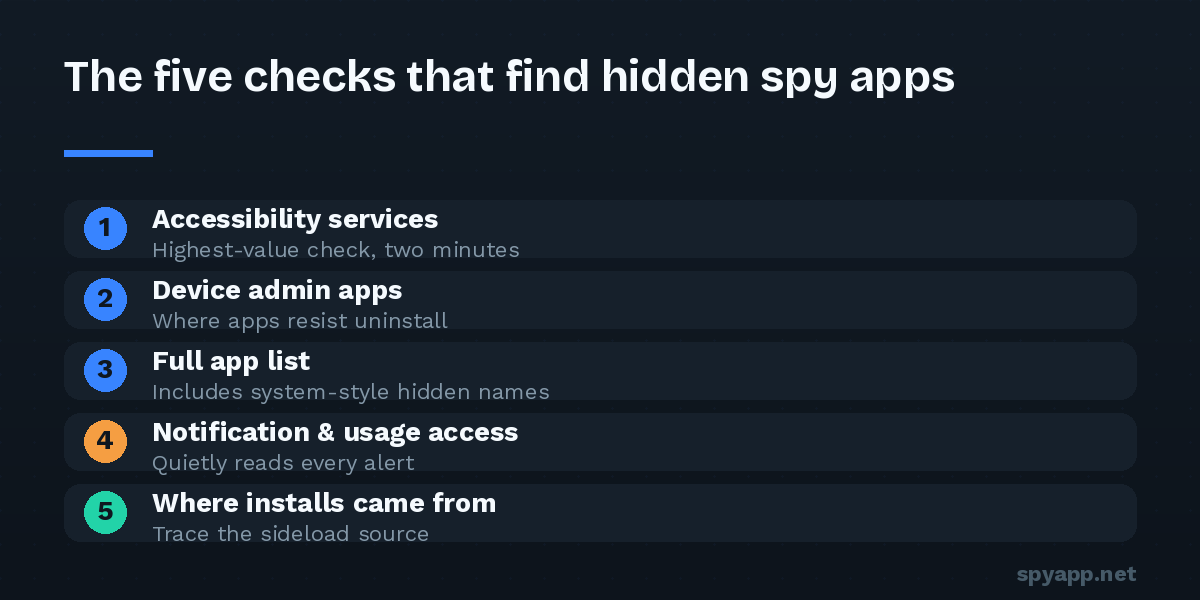
A hidden spy app almost always has three traits:
- No launcher icon — it doesn’t appear in the app drawer, only in the full settings list.
- A disguised name — something generic and boring: “Sync Manager”, “Device Care”, “WiFi Service”.
- Powerful access — Accessibility, device admin, notification access, or usage access. Without at least one of these, a spy app can’t see much.
That third trait is the weakness. Android keeps an honest list of which apps hold each kind of powerful access, and a spy app cannot remove itself from those lists. So that’s where we look.
Check 1: Accessibility services (two minutes, highest value)
Settings → Accessibility → Downloaded apps (on Samsung: Accessibility → Installed apps).
Every app listed here can read your screen — every message, every password field as you type, every app you open. Legitimate entries are things you chose: a screen reader, a password manager’s autofill. If you see anything you don’t recognize, write down its exact name. That single finding justifies everything else in this guide.
Check 2: Device admin apps
Settings → Security (or Security & privacy) → More security settings → Device admin apps.
Device admin rights let an app lock the screen, wipe data — and, crucially for spyware, block its own uninstallation. The legitimate list is short: Find My Device, possibly a work profile or your company’s management app. Anything else is suspect.
Check 3: The full app list, including system-style names
Settings → Apps → See all apps. This list includes apps with hidden icons.
Scroll slowly. You’re looking for names that try to sound official without being so: real Android system components are filtered out of this view on most devices, so a “System Update Service” sitting between Spotify and Twitter is dressed up to deceive. For anything unfamiliar:
- Tap it and check Permissions. A “system service” with access to SMS, microphone, camera and location is no service.
- Check Data usage on the same screen — heavy background upload is the spyware tell.
- Search the exact app name online. Genuine apps have a Play Store page; spyware has forum threads asking “what is this app on my phone?”
Check 4: Notification access and usage access
Two quieter permissions that spyware loves:
- Settings → Notifications → Device & app notifications (or search settings for “notification access”): apps here read every notification, including message previews — a way to read your chats without touching the apps themselves.
- Search settings for “usage access”: apps here see which apps you use and when.
Both lists should be short and entirely recognizable.
Check 5: Where did installs come from?
Settings → Apps → Special app access → Install unknown apps. If a browser, messaging app, or file manager is set to “Allowed” and you never enabled it, someone (or something) installed apps from outside the Play Store on this phone. Set everything here back to “Not allowed” while you investigate.
Also open the Play Store → Play Protect: if it’s disabled, that’s significant — turning it off is step one in nearly every spy-app installation guide.
Check 6: Dial codes and forwarding (the call-spying angle)
Old-fashioned but still relevant: dial #21# and #62# to see whether your calls or messages are being forwarded to another number. “Not forwarded” across the board is what you want. Forwarding set to a number you don’t recognize means someone configured your line itself — contact your carrier.
Check 7: Scan the actual files
If you found a suspicious app, you can get a definitive answer instead of guessing. Export its APK file with any reputable backup tool (or, if you still have the original APK it was installed from, use that) and upload it to our free APK scanner. The scan matches the file against known spyware signatures, lists every permission it requests in plain English, and flags hidden-icon behavior and Accessibility abuse — the exact tricks this guide has been hunting for. You’ll also see how other users voted on the same file.
Found something? Remove it in the right order
- If your concern involves a partner, ex, or family member who may be monitoring you, pause here. Removing stalkerware can alert the person who installed it. If there is any safety risk, talk to a domestic-violence support organization first and read our stalkerware guide for a safety-first removal plan.
- Revoke the app’s device admin rights (Check 2’s screen) — uninstall is blocked until you do.
- Turn off its Accessibility access.
- Uninstall from Settings → Apps → [the app] → Uninstall.
- Reboot, then re-run Checks 1–4 to confirm nothing re-enabled itself.
- Change your important passwords from a different device, starting with your Google account, and turn on two-factor authentication.
If the app won’t uninstall, reboot into safe mode (hold the power-off button on screen until “Safe mode” appears) and try again — safe mode prevents third-party apps from running and fighting back. And if anything still seems wrong afterward, a factory reset removes virtually all consumer spyware: back up photos and contacts, reset, and set the phone up as new rather than restoring a full backup.
Make the check a habit
The whole audit — Accessibility, device admin, app list, notification access, install sources — takes under ten minutes once you’ve done it twice. Run it after anyone has had physical access to your unlocked phone, after installing anything from outside the Play Store, and any time the battery or data symptoms in our ten warning signs guide appear. Hidden apps rely on you never opening these screens. Now you know exactly which doors to check.