Spyware is designed to be invisible. A well-made spy app has no icon, no notifications, and no obvious presence on your phone. But “invisible” is not the same as “undetectable” — because spying is expensive. Recording audio, reading messages, tracking GPS and uploading it all to a server costs battery, data and processing power, and those costs leave fingerprints.
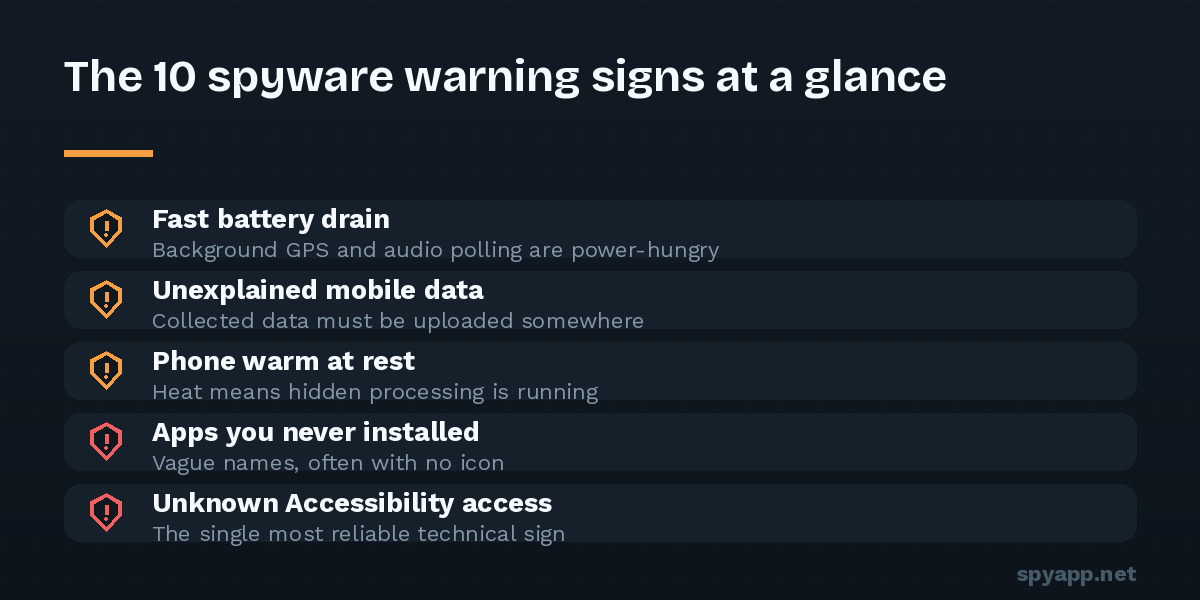
Here are the ten signs that matter most, roughly in order of how often they show up in real cases, followed by what to actually do if several of them sound familiar.
1. Your battery drains noticeably faster than it used to
Spyware runs constantly in the background, and GPS polling and audio recording are especially power-hungry. A phone that used to last a full day and now dies by mid-afternoon — without any change in how you use it — deserves a closer look.
Check it yourself: open Settings → Battery → Battery usage. Look for apps you don’t recognize, or generic system-sounding names (“Sync Service”, “Device Health”, “WiFi Helper”) consuming a large share. An unfamiliar app hiding behind a bland system-style name is a classic spyware disguise.
2. Mobile data usage you can’t explain
Everything a spy app collects has to be uploaded somewhere. Open Settings → Network & internet → Data usage and review per-app consumption. A “calculator” or “flashlight” app that has moved hundreds of megabytes is not doing math or making light.
Pay special attention to background data. Most legitimate apps transfer data mainly while you’re using them; spyware uploads while the screen is off.
3. The phone runs warm when you’re not using it
Heat means work. If your phone is warm in your pocket or on the nightstand — screen off, nothing playing, nothing downloading — something is keeping the processor busy. Occasional warmth after charging or system updates is normal. A phone that is regularly warm at rest is not.
4. Strange behavior during calls
Echoes, clicking, or voices fading in and out usually have innocent explanations — bad reception is far more common than wiretapping. But call-recording spyware inserts itself into the audio path, and on lower-end devices that interference can be audible. Treat this sign as meaningful only in combination with others on this list.
5. The screen wakes up or the phone restarts on its own
Some spyware briefly wakes the device to take a photo, capture the screen, or check in with its server. If your screen lights up with no notification shown, or the phone reboots at odd hours, take note. Random reboots can also be poorly written spyware crashing — malware authors don’t do much quality assurance.
6. Apps you don’t remember installing
Scroll through Settings → Apps → See all apps (not just the app drawer — spyware often hides its launcher icon). Look for anything you didn’t install, especially apps with vague names and no icon. If you find one, don’t open it; note the name and check its permissions first.
7. An app has Accessibility or Device Admin access you never granted
This is the single most reliable technical sign. Android’s Accessibility framework — designed for users with disabilities — can read everything on screen, and spyware abuses it constantly. Check two places:
- Settings → Accessibility → Downloaded apps: every app listed here can read your screen. You should recognize all of them.
- Settings → Security → Device admin apps: device admin rights let an app resist uninstallation. Only things like “Find My Device” or a work profile belong here.
If an unknown app appears in either list, that is a serious red flag.
8. Your messaging apps act strangely
Messages marked read that you never opened, conversations that scroll by themselves for a moment, or contacts saying you “saw” something you never did. Spyware that reads messages through Accessibility sometimes produces visible artifacts like these.
9. Settings changed by themselves
Find “Install unknown apps” enabled for a browser, Google Play Protect turned off, or battery optimization disabled for an app you don’t recognize? Spyware switches these settings to install itself and stay alive. Play Protect being silently off is particularly telling — disabling it is step one in almost every spy-app installation manual.
10. Someone knows things they shouldn’t
The non-technical sign that outranks all the others. If a person in your life repeatedly knows your location, who you talked to, or what you said in private messages, trust that observation. In stalkerware cases, the victim’s intuition usually fires long before any technical symptom is noticed. If this is your situation, read our guide to stalkerware before doing anything else — removing a spy app can alert the person who installed it, and your safety comes first.
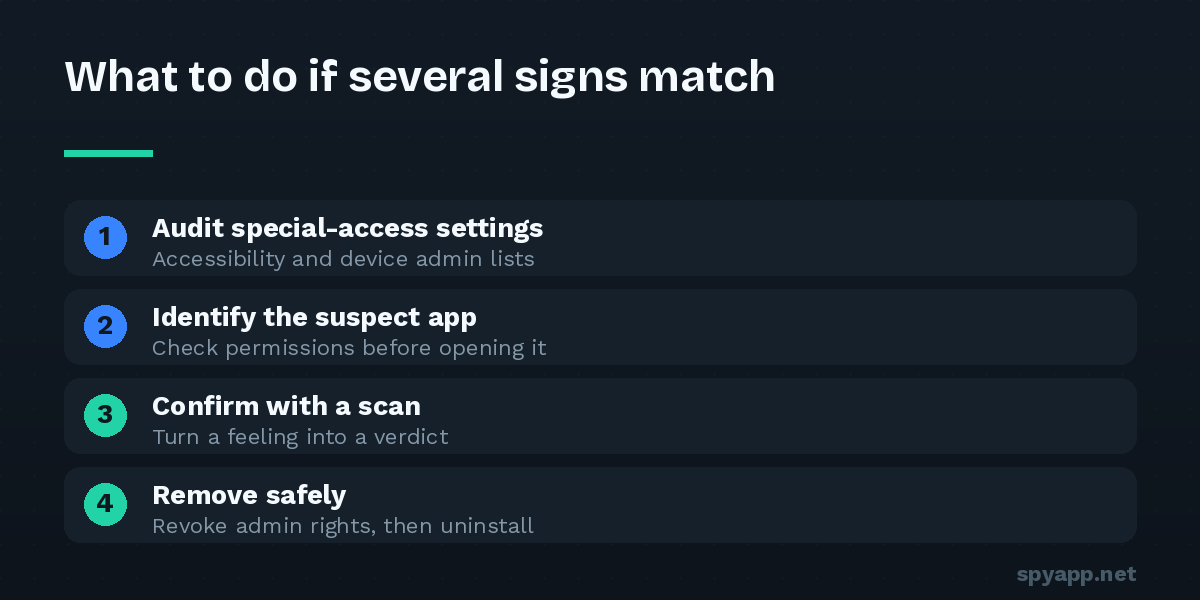
What to do next: confirm, then remove
One sign alone proves little; three or four together justify action.
Step 1 — Run Play Protect. Open the Play Store → profile icon → Play Protect → Scan. It catches a fair share of common spyware.
Step 2 — Audit the three lists. Accessibility, Device admin apps, and the full app list, as described above. Search the web for the exact name of anything unfamiliar before assuming it’s harmless.
Step 3 — Scan suspicious APKs. If you can locate the APK file of a suspicious app (or you still have the file it was installed from), upload it to our free APK scanner. You’ll get a verdict in seconds, including which permissions it abuses and whether it matches known spyware signatures.
Step 4 — Remove. Revoke device admin rights first (otherwise uninstall is blocked), then uninstall the app. Our step-by-step removal guide covers the cases where the app fights back.
Step 5 — Change your passwords from a different, clean device — starting with your Google account. If spyware read your screen, assume it read your logins too.
A factory reset remains the nuclear option that removes virtually all consumer spyware. It’s less painful than people fear, and for peace of mind it is sometimes worth it.
The bottom line
No single symptom proves spyware, and a slow, hot phone is more often just an aging battery. But the combination — battery plus data plus an Accessibility entry you never granted — tells a clear story. Trust the pattern, check the lists, and when in doubt, scan the file. It costs nothing and takes thirty seconds.