
Introduction
Locking your Android phone with a screen password or fingerprint is a good first step toward protecting your data. But what if you want to secure specific apps—like WhatsApp, Facebook, or banking apps—from prying eyes? Fortunately, Android offers multiple ways to lock apps individually.
In this guide, we’ll cover built-in app lock features available on popular Android brands, explore third-party app lockers, and show you how to use advanced parental control tools for complete app restrictions.
1. Lock Apps with Built-in Features
Many Android manufacturers include native app lock options in their devices. Here’s how to use them:
Samsung (Secure Folder)
- Go to Settings → Biometrics and Security → Secure Folder.
- Set up a lock type (PIN, password, pattern, or biometrics).
- Move sensitive apps into the Secure Folder to protect them.
Xiaomi / Redmi (App Lock)
- Go to Settings → Apps → App Lock.
- Turn on App Lock and sign in with your Mi account.
- Select apps you want to lock.
OnePlus (App Locker)
- Go to Settings → Security & Fingerprint → App Locker.
- Toggle the switch beside the app you want to lock.
Huawei (App Lock)
- Open Settings → Security → App Lock.
- Enter your password to enable.
- Choose apps to lock individually.
💡 Note: Some devices also offer Hide Apps features, which conceal apps entirely from the app drawer.
2. Lock Apps Using Third-Party App Lockers
If your phone doesn’t have a built-in app lock, third-party apps are a reliable alternative.
AppLock (DoMobile Lab)
- Download AppLock from Google Play.
- Set a password or pattern.
- Select apps to lock.
- Features include intruder selfie mode (captures photo of unauthorized attempts).
Norton App Lock
- Install Norton App Lock from Google Play.
- Choose apps to secure.
- Configure fingerprint, PIN, or pattern.
- Trusted brand with strong security reputation.
AppLock – Fingerprint (SpSoft)
- Install AppLock – Fingerprint from Google Play.
- Create a master PIN.
- Select apps to lock.
- Features include fake error messages and intruder selfies.
3. Lock Apps Entirely with Parental Control Tools
For advanced restrictions, especially for parents managing children’s devices, SpyApp Parental Control is a powerful solution.
Features
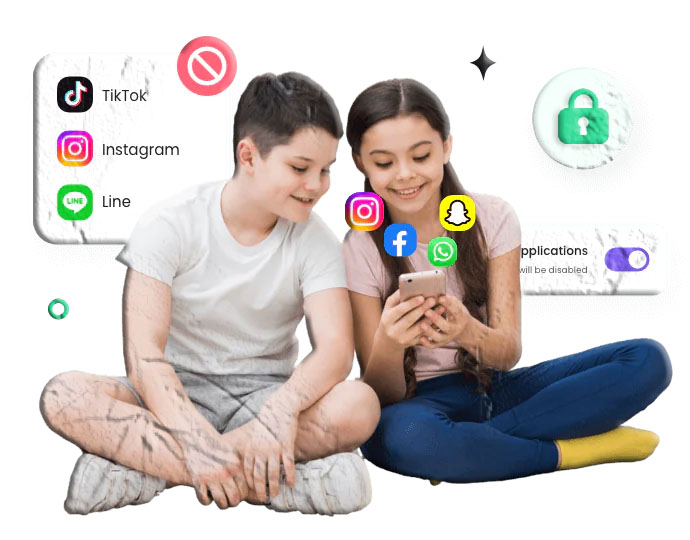
- Block specific apps completely.
- Schedule app usage times.
- Monitor app notifications (WhatsApp, Messenger, etc.).
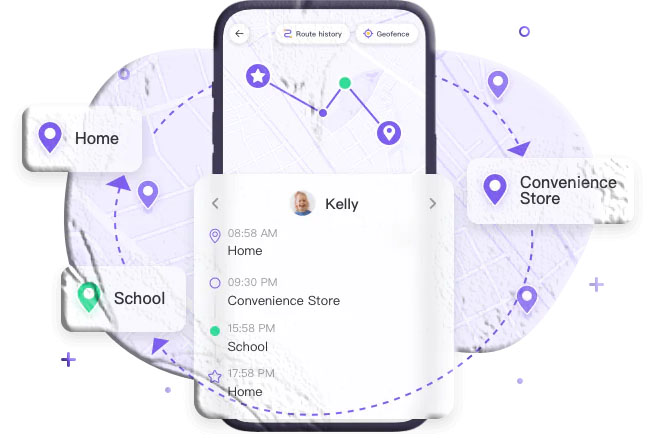
- Track device location in real-time.
Steps to Use SpyApp Parental Control
- Install SpyApp Parental Control on your phone.
- Create an AirDroid account.
- Install SpyApp Kids on your child’s phone.
- Pair both devices.
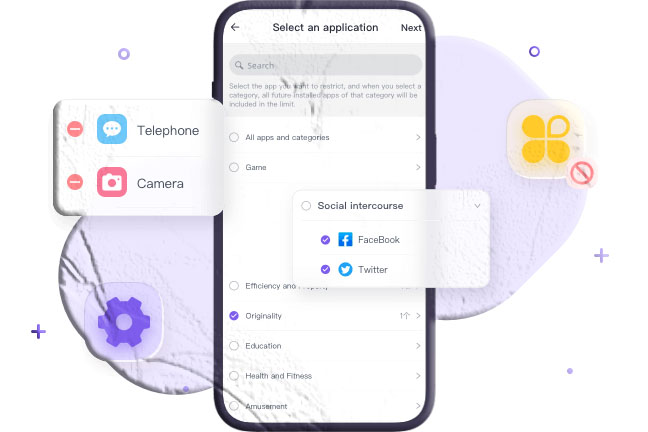
- Open App & Content Restrictions → App Blocker.
- Select apps to block and toggle restrictions.
This ensures children avoid inappropriate apps and helps parents regulate screen time effectively.
Final Words
Locking apps on Android is essential for privacy and security. Whether you use built-in features, third-party app lockers, or parental control tools, you can protect sensitive apps from unauthorized access. For families, advanced parental control solutions like AirDroid provide peace of mind by combining app blocking with monitoring and location tracking.
FAQs About Locking Apps on Android
- Can I lock apps without third-party apps? Yes, many Android phones (Samsung, Xiaomi, Huawei, OnePlus) have built-in app lock features.
- Which is the best free app locker? AppLock (DoMobile Lab) and Norton App Lock are popular free options.
- Can I hide apps instead of locking them? Yes, some phones allow you to hide apps completely from the app drawer.
- Can parental control apps lock apps permanently? Yes, tools like AirDroid Parental Control can block apps entirely and notify parents of attempts.
- Does locking apps affect performance? No, app lockers run in the background but don’t slow down your phone significantly.