
Losing an iPhone is stressful enough — but losing it when the device is powered off can feel like a worst‑case scenario. Apple introduced major improvements to the Find My network in recent versions of iOS, including the message “iPhone Findable After Power Off” that appears when shutting down newer models. This has led many users to believe that an iPhone can still be tracked even when it’s completely turned off.
But does Find My actually work when the phone is off? Can you still see its location? And what should you do if your iPhone is lost, stolen, or powered down?
This fully rewritten guide breaks down how Find My behaves in real‑world conditions, what Apple’s documentation means, and the steps you can take to improve your chances of recovering your device.
Does Find My iPhone Work When the Phone Is Off?
The short answer: Find My cannot show the live location of an iPhone that is fully powered off. You will only see the last known location until the device turns on again.
This is true even though Apple introduced the “Findable After Power Off” feature for iPhone 11 and later. While the feature is designed to help locate a powered‑off device, it does not guarantee real‑time tracking.
Real‑World Testing: What Actually Happens
To understand how Find My behaves, we tested the feature using an iPhone 14 running the latest iOS version.
Test Conditions
- iPhone fully charged
- Bluetooth enabled
- Wi‑Fi enabled
- Cellular enabled
- Find My enabled
- “Find My network” enabled
Before shutting down the device, the message “iPhone Findable After Power Off” appeared — exactly as Apple describes.
What Happened After Powering Off
- The iPhone’s icon in Find My turned black, indicating it was offline.
- The location did not update after shutdown.
- Even after 15 hours, the location remained unchanged.
- Only the last known location was visible.
What Happened After Powering On
- The location updated instantly.
- The device became trackable again in real time.
This aligns with what many users report: Find My does not consistently update the location of a powered‑off iPhone, even though Apple suggests it may be possible under certain conditions.
Why Apple Says Find My Works When the Phone Is Off
Apple’s documentation states that you can locate devices that are “offline or powered off.” This is technically true — but only under specific circumstances.
How It Works Behind the Scenes
iPhones with the U1 chip (iPhone 11 and later) enter a low‑power state when turned off. In this state:
- Bluetooth remains partially active
- The device can emit encrypted Bluetooth signals
- Nearby Apple devices can detect these signals
- The location can be relayed through the Find My network
This system is similar to how AirTags work.
Why It Doesn’t Always Work
In practice, several factors affect whether a powered‑off iPhone can be located:
- Battery level
- Time since shutdown
- Whether Bluetooth was enabled
- Whether “Find My network” was enabled
- Whether nearby Apple devices are present
- Hardware variations
- iOS version
Because of these variables, Find My may not update the location of a powered‑off device consistently.
How to Find an iPhone That Is Powered Off
Even though Find My cannot track a powered‑off iPhone in real time, there are still several steps you can take to increase your chances of recovering it.
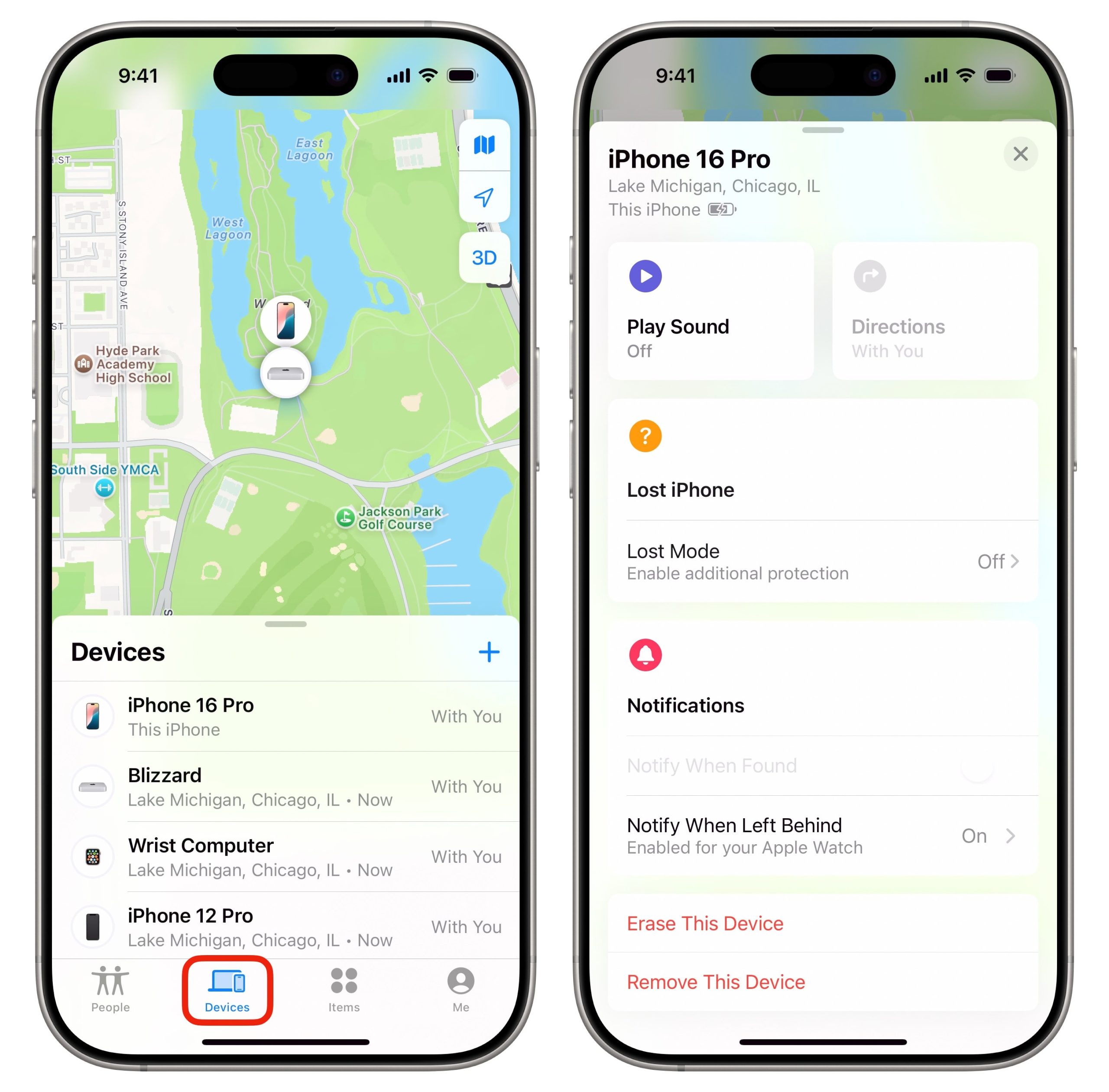
1. Check the Last Known Location
Find My stores the last location of your device for up to 24 hours. This gives you a starting point for your search.
How to Check
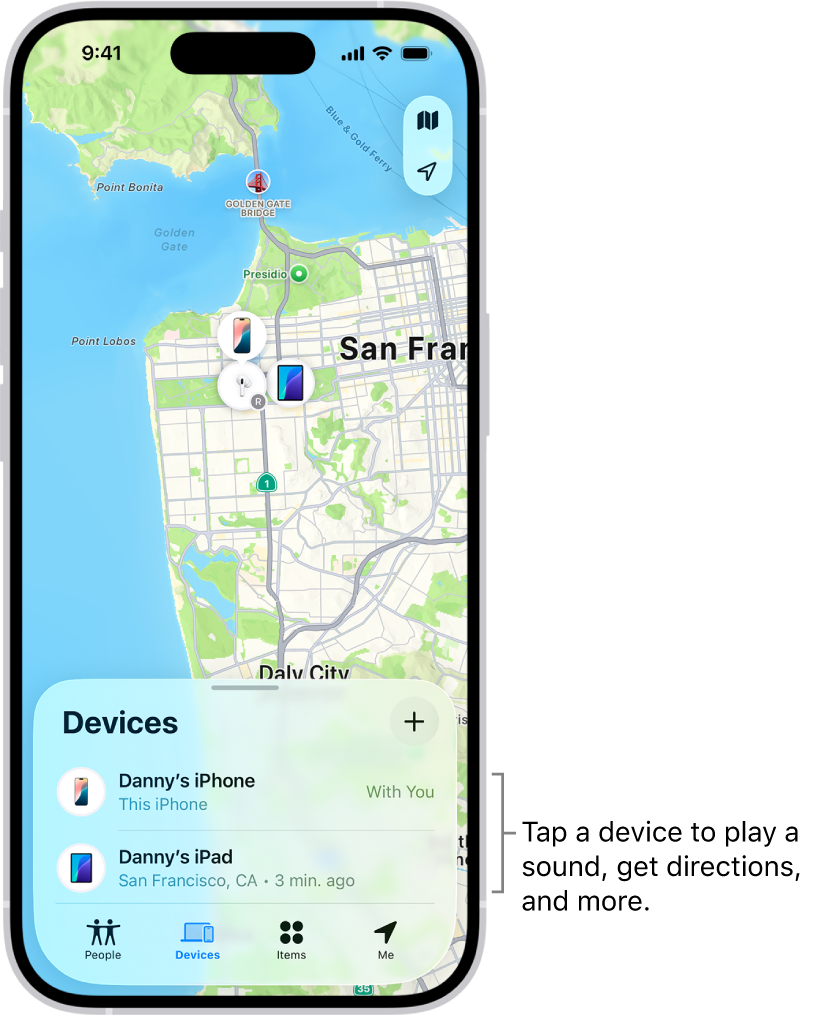
- Open the Find My app on another Apple device
- Or visit icloud.com/find
- Select your iPhone
- View the map for the last known location
If the device turns on later, the location will update automatically.
2. Mark the iPhone as Lost
Lost Mode is one of the most important tools available in Find My. It locks your device and displays a message on the lock screen.
How to Activate Lost Mode
- Open Find My or visit icloud.com/find
- Select your iPhone
- Tap Activate under Mark As Lost
- Enter a phone number
- Add a message for anyone who finds the device
This ensures that:
- Your data stays protected
- No one can access your apps
- A finder can contact you
3. Keep Checking Find My Periodically
If someone picks up your iPhone, they may eventually turn it on. When that happens:
- The device reconnects to the network
- The location updates instantly
- You can track it in real time
Checking Find My regularly increases your chances of catching the moment it comes online.
4. Erase the Device Remotely
If you believe the device won’t be recovered, you can erase it remotely.
How to Erase
- Open Find My
- Select your iPhone
- Tap Erase This Device
This removes all personal data, including:
- Photos
- Messages
- Accounts
- Saved passwords
Once erased, the device remains activation‑locked to your Apple ID.
5. Contact Your Carrier
Your mobile carrier can:
- Suspend your service
- Prevent unauthorized usage
- Flag the device as lost
This step is especially important if your iPhone contains sensitive information.
6. File a Police Report
If you believe your iPhone was stolen, reporting it to local authorities creates an official record. This may help if the device is recovered later.
7. Inform People Around You
Posting about your lost iPhone on social media or community groups can help spread awareness. Sometimes, a simple announcement leads to recovery.
Why You Should Avoid “Magic Tracking Methods”
You may come across websites or apps claiming they can track a powered‑off iPhone instantly. These methods are not real.
Why They Don’t Work
- No third‑party service can access Apple’s encrypted Find My network
- A powered‑off device cannot send GPS data
- Apple does not share location data with external apps
- Scammers often use these claims to steal money or personal information
Only Apple’s built‑in Find My system can locate an iPhone — and even then, only under certain conditions.
How Find My Works When the iPhone Is Offline (But Not Off)
If your iPhone is offline but still powered on, Find My can still locate it using:
- Bluetooth
- Nearby Apple devices
- Wi‑Fi signals
- Cellular triangulation
This is different from a fully powered‑off device.
How to Make Your iPhone Easier to Find in the Future
You can improve your chances of recovering a lost device by enabling these settings:
1. Enable Find My iPhone
Settings → Apple ID → Find My → Find My iPhone
2. Enable Find My Network
This allows offline tracking.
3. Enable Send Last Location
Your iPhone will automatically send its last location when the battery is low.
4. Keep Bluetooth On
Bluetooth helps the Find My network detect your device.
Conclusion
Apple’s Find My network is powerful, but it has limitations. While newer iPhones display the message “Findable After Power Off,” real‑world testing shows that a powered‑off device cannot be tracked in real time. You will only see the last known location until the phone turns on again.
To maximize your chances of recovering a lost iPhone:
- Check Find My regularly
- Activate Lost Mode
- Erase the device if necessary
- Contact your carrier
- File a police report if theft is suspected
Find My remains the most effective tool for locating a missing iPhone — but it works best when the device is powered on and connected.
FAQs
1. Can Find My iPhone track a device that is completely powered off?
No. It can only show the last known location until the device turns on again.
2. Does “Findable After Power Off” mean real‑time tracking?
Not necessarily. It depends on Bluetooth, battery level, and nearby Apple devices.
3. Can third‑party apps track a powered‑off iPhone?
No. Only Apple’s Find My system can locate Apple devices.
4. How long does Find My store the last known location?
Up to 24 hours.
5. What happens when the iPhone turns on again?
Find My updates the location instantly.