
Introduction
Recording phone calls on Android can be useful for many reasons—whether you want to save important conversations, keep evidence of scam calls, or simply remember details from a discussion. Android devices offer multiple ways to record calls, from built-in features to third-party apps. However, before you start, it’s important to understand the legal implications of call recording in your region.
Is It Legal to Record a Phone Call?
Call recording laws vary depending on where you live:
- One-party consent states/countries: Only one person (you) needs to know the call is being recorded.
- Two-party consent states/countries: Everyone on the call must be informed and agree to the recording.
For example, in the U.S., states like California, Florida, Illinois, Maryland, and Massachusetts require two-party consent. Always check your local laws before recording to avoid legal issues.
Methods to Record a Phone Call on Android
1. Using the Phone App
Many modern Android devices include a built-in call recording option in the Phone app.
Steps:
- Open the Phone app.
- Tap the three-dot menu → Settings.
- Look for Call Recording or Record Calls.
- Enable automatic recording for unknown numbers or selected contacts.
Recordings are saved in your phone’s internal storage or within the Phone app. You can replay them by opening the call history and tapping the Play button next to the recorded call.
2. Using the Screen Record Feature
Some Android devices include a Screen Recorder that can capture audio during calls.
Steps:
- Swipe down to open Quick Settings.
- Tap Screen Record and enable audio recording.
- Start the call while recording.
- Stop recording when finished—the file will be saved in your gallery.
3. Using Google Voice
Google Voice is a free VoIP service that allows call recording.
Steps:
- Open Google Voice settings.
- Enable Incoming call options.
- During a call, press 4 to start recording.
- Press 4 again or end the call to stop.
Note: Google Voice announces to all participants that the call is being recorded.
4. Using External Devices
You can use a digital recorder or external microphone to capture calls.
Steps:
- Connect the recorder or microphone via headphone jack or Bluetooth.
- Place it near your phone’s speaker.
- Start recording before or during the call.
This method avoids in-app notifications but requires extra equipment.
5. Using Another Device
If no recording features are available, use a second phone or tablet.
Steps:
- Start the call on your Android device.
- Place another device nearby with a voice recording app.
- Save the audio file after the call.
Best Call Recording Apps for Android
Automatic Call Recorder Pro
- Records all incoming and outgoing calls automatically.
- Saves files as MP3 and protects them with a password.
- Allows sharing via email and playback through speaker or earpiece.
Cube ACR
- Records calls from VoIP apps like WhatsApp, Skype, and Viber.
- Free version available; premium adds cloud storage and PIN lock.
- Supports automatic deletion of old recordings.
ACR Phone
- Offers call recording, spam blocking, and privacy management.
- Saves recordings to Google Drive or Dropbox.
- Includes call notes and advanced search options.
Where Are Recordings Stored?
Recordings are usually saved in your phone’s internal storage or within the app you used.
Steps to find recordings:
- Open the File Manager app.
- Search for folders named Recordings or Music.
- Use the search bar to look for “recording” or the app name.
- Tap the file to play it.
Parental Monitoring: SpyApp Example
Parents can use apps like SpyApp Parental Control to monitor children’s phones.
Features:
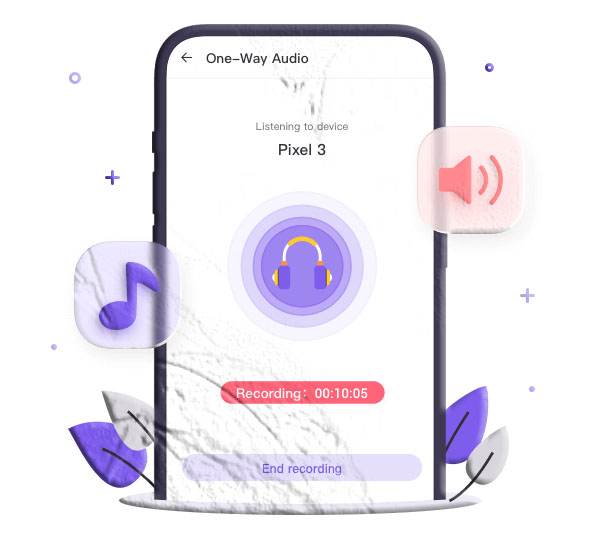
- One-way audio to listen to surroundings.
- Real-time alerts for suspicious activity.
- Location tracking and app monitoring.
Conclusion
Android offers multiple ways to record phone calls—built-in features, Google Voice, third-party apps, or external devices. Whether for personal records or safety reasons, call recording can be valuable, but always respect local laws and obtain consent when required.
FAQs About Call Recording on Android
- Can I record a call while I’m on the phone? Yes, using built-in features or apps like Automatic Call Recorder.
- Does Samsung have call recording? Yes, many Galaxy devices include a built-in option in the Phone app.
- Can I record VoIP calls like WhatsApp or Skype? Yes, apps like Cube ACR support VoIP call recording.
- Can I auto-record all calls? Yes, enable automatic recording in the Phone app or use apps like ACR Phone.
- Can I record calls without an app? Yes, by using the Screen Recorder feature or an external device.